Frequenty Asked Questions
I am stuck inside something weird on the command line!
If you ever get 'stuck' inside a command line session and you want to get unstuck the most reliable trick is to type Ctrl+c (hold the control key and push 'c'). This is like an instant quit command for 99% of command line tools.
What do I do when I get stuck in this window and why did it happen?
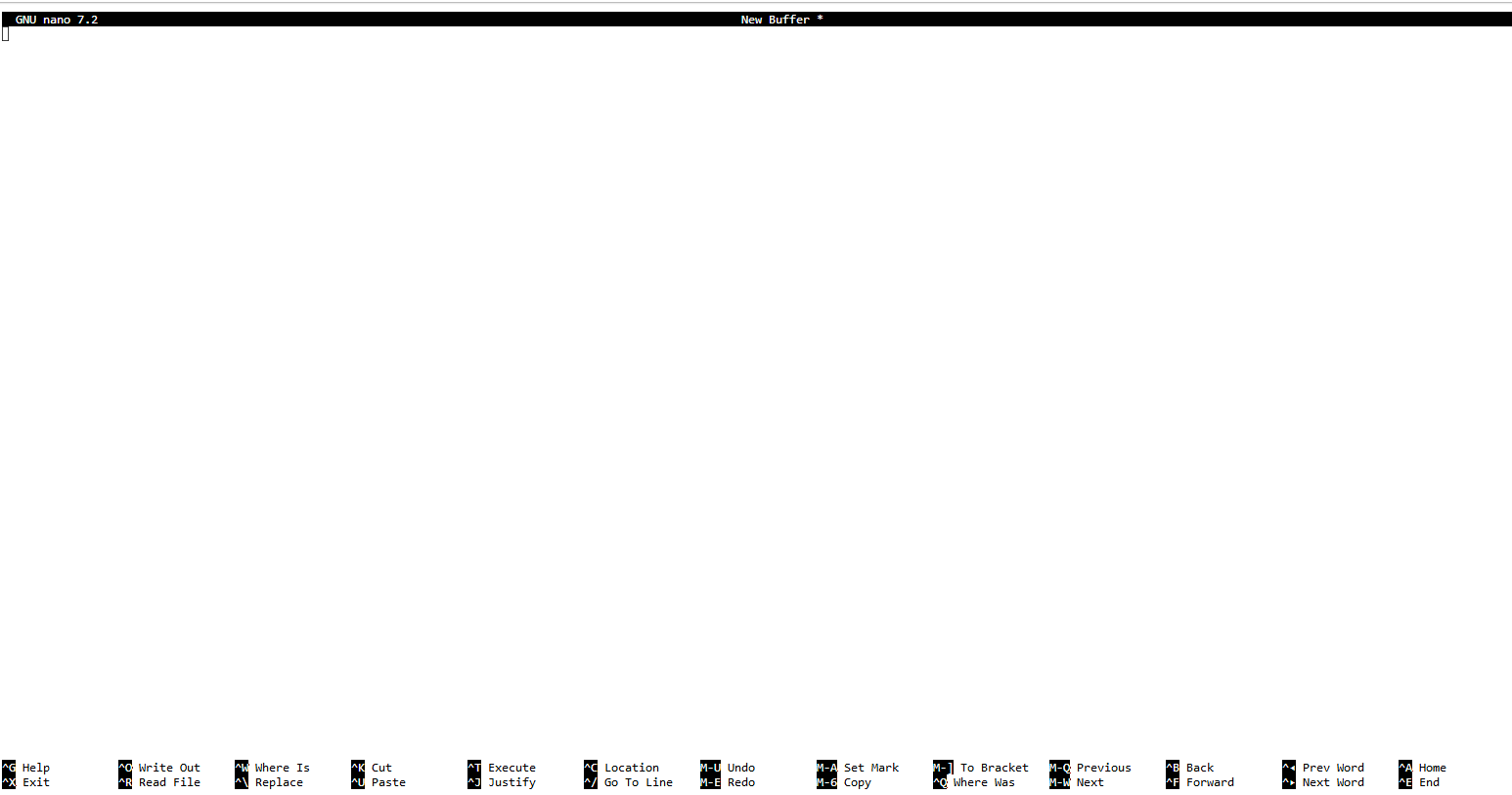
This is the nano command-line text editor. On the first day we set nano
as the default editor for git. You will see this in your terminal if you
forget to add the -m argument when you commit files
(e.g. git commit vs git commit -m "my commit message"). All commits
require a commit message, so if you leave off the -m then it drops
you into the default editor so you can type in the commit message manually
(which is also totally fine).
How do I get out of this?: nano accepts keyboard shortcut commands,
most of which it shows at the bottom of the screen. The '^' symbol means
'Ctrl', so ^X hold the Ctrl key and push "X", which will exit the program.
How do I properly reference files inside my class github repository?
The absolute path to your class github repository is: /home/jovyan/BIO597-SpatialBiodiversity.
Info
'jovyan' is the default username inside jupyter so this will be the same for everyone.
If you are working on an assignment, the relative path to the EasternSnakes
directory is: ../labs/EasternSnakes.
File paths are always tricky because they rely on having a 'sense' of where you are in the filesystem and how to navigate around it. Absolute paths fully specify the location of a file from the 'root' of the filesystem (which is indicated by the first "/"). Relative paths will usually start with a '.' (meaning "this directory") or a '..' (meaning one directory up).
How do I see information about all the variables that are active in a jupyter notebook?
There are two ways to do this. The first way is to use the %whos magic command.
Inside a new cell you can type %whos and it will give information about all the
variables you have created.
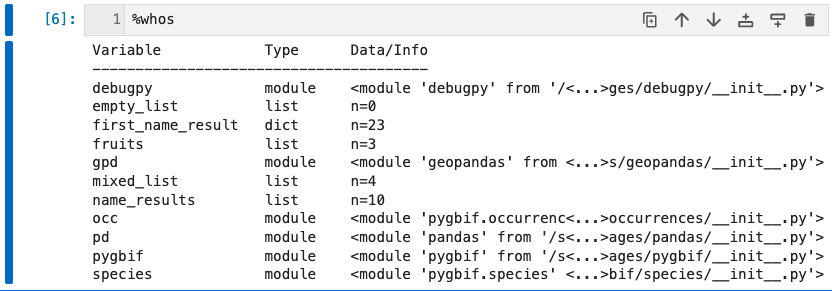
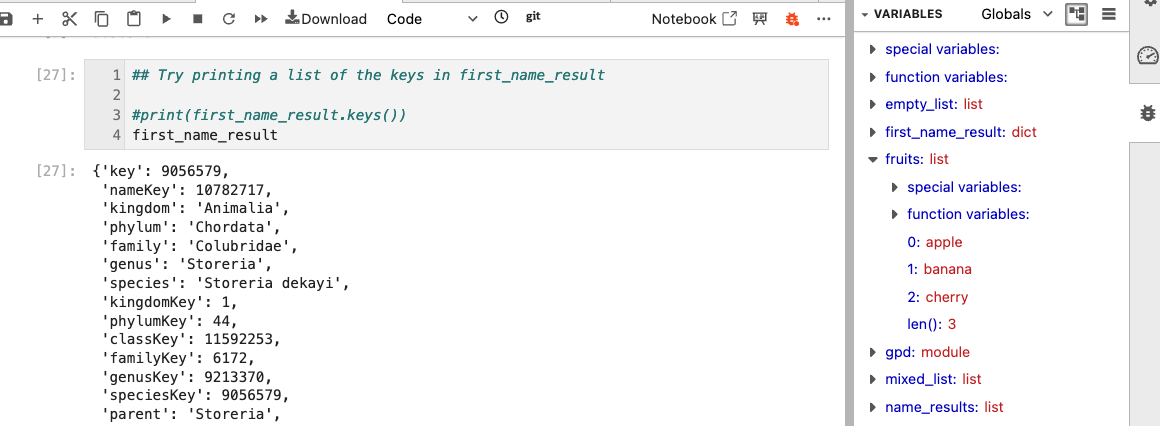
This is fine but you can't browse it like the variables pane in RStudio. To get
a more interactive view of the variables you can enable the debugger by clicking
the little bug shaped button (it might be hidden inside a 'three-dots' menu on the
right side of the command bar).

After you do this (it might open immediately) you will see the 'bug' menu on the right side and if you open this you will see a 'variables' panel much like in RStudio, where you can click on variable names to see their current contents.
Why am I getting an error when loading a csv file (e.g. DTypeWarning)?
For the Maine Amphibian data for Assignment 3, when you load this data you get a warning message:

First, this is a warning only, which means it still worked but it wants
you to be aware of something. In this case there are two columns in the input
csv (typeStatus and establishmentMeans) which have "mixed" types. You can
see what this means if you query one of these columns and use the set()
function to retain only unique elements:
set(amphibians["establishmentMeans"])
{nan, 'native', 'uncertain'}
nan which stands for "Not a Number" and which is often used
as a default value for non-existent records. nan is also treated internally
as a float, so this column has both string and float values (which
is what the warning is about.
Buried in this warning you can see that it is trying to be helpful in
suggesting to use low_memory=False, and indeed this will get rid of the
error. You can also safely ignore this for this exercise because
we aren't using the values from either of these columns anyway.
What do I do if I have committed a file bigger than 100MB and I get an error about "this exceeds GitHub's file size limit of"?
Assuming you are only one commit ahead of origin you can do a \
git reset --soft origin/main to "forget" the local commit you made, then
open the notebook and 'clear cell output' for several of the maps/images
(this usually comes from the explore() function). Then you can save
the notebook, then add/commit again and it should push fine.